 Open JP Clips
Start with a moment in a Twitch stream or replay. Create and publish the source clip on Twitch before preparing it for TikTok.
Publish the source clip on Twitch
- Open the Twitch broadcast or replay and use the Clip button near the player controls. If clipping is unavailable, check the channel’s settings and your access.
- Trim to the moment. Keep enough of the lead-in for someone who missed the stream to understand the payoff.
- Enter a clear title, check the preview, publish the clip and copy its public share link. Open that link to make sure it plays before using it in an editor.
See Twitch’s guide to clips for current editor and channel controls.
Render and post the vertical edit
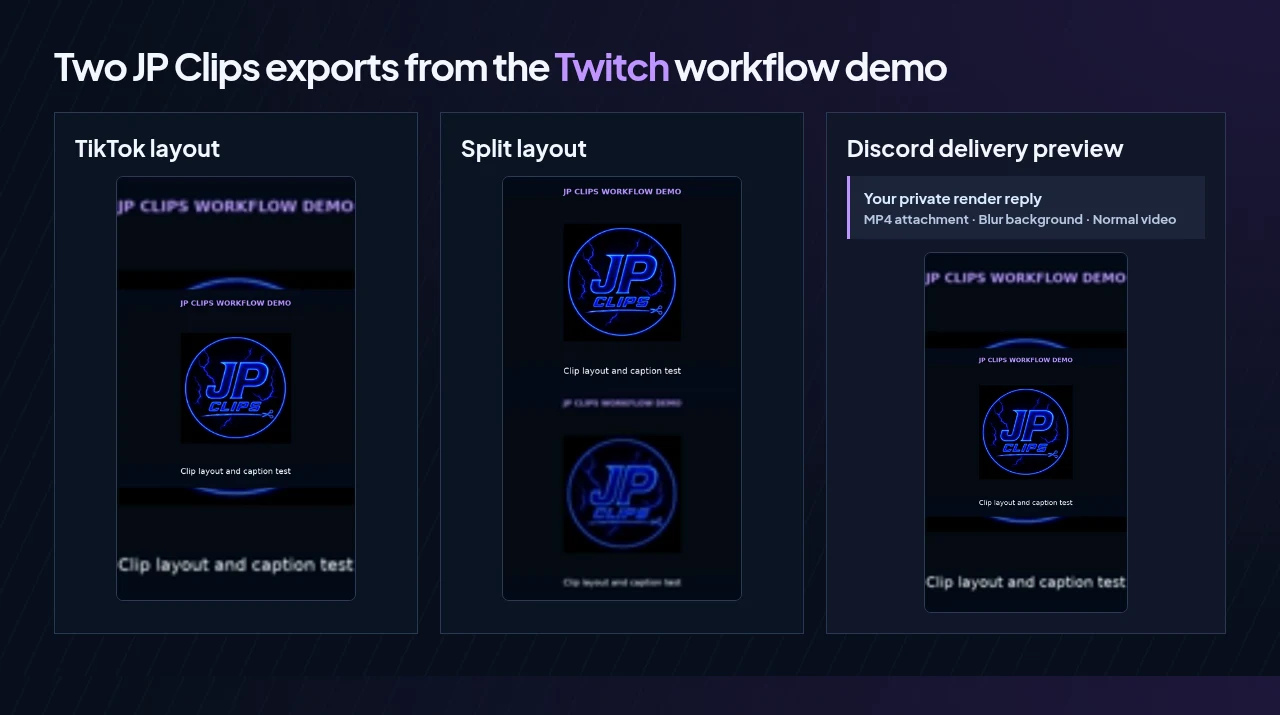
Use the Twitch clip to TikTok converter to turn the source link into a 9:16 MP4. Play back the export and check the framing, audio and text placement before uploading to TikTok.
Related guides
See Twitch clipping in JP Clips for the website and Discord workflows. Read the guide to automatic Twitch clip collection if you work with the same channels regularly.
Common questions
Can I start with an existing Twitch clip?
Yes. Paste its public link into Clip Feed or open a collected clip from a tracked Twitch streamer.
What if the channel has disabled clipping?
Check for an existing published clip or choose another source with permission.
What should I check before posting?
Play the full export and check the framing, sound and any required creator credit.