 Open JP Clips
What it does for Twitch clippers
Start in Clip Feed or the streamer’s Discord channel. JP Clips brings the published clips together so you can preview the moment, choose a format and download your edit.
Choose TikTok for a vertical TikTok or Shorts export, or Edit for X for 1280×720 landscape. If you already have the original clip’s URL, paste it into the Clip Feed to open Render Studio.
How it works
After sign-in, open Clip Feed and use All streamers to narrow the feed, or go to Streamers and choose a profile. In Discord, browse the UK, US and partner streamer categories. Both show published clips from the tracked channels.
The website and Discord share saved render settings and the daily allowance. Starting a render reserves its slot. You can have up to 10 renders running or waiting, with exports capped at 3 minutes. Cancel your own job before uploading starts if you need to stop it.
Use the website
- Sign in to jpclips.tv with your Discord account. Open Streamers to choose a tracked channel, or filter the Clip Feed by streamer. Website access is included on every plan.
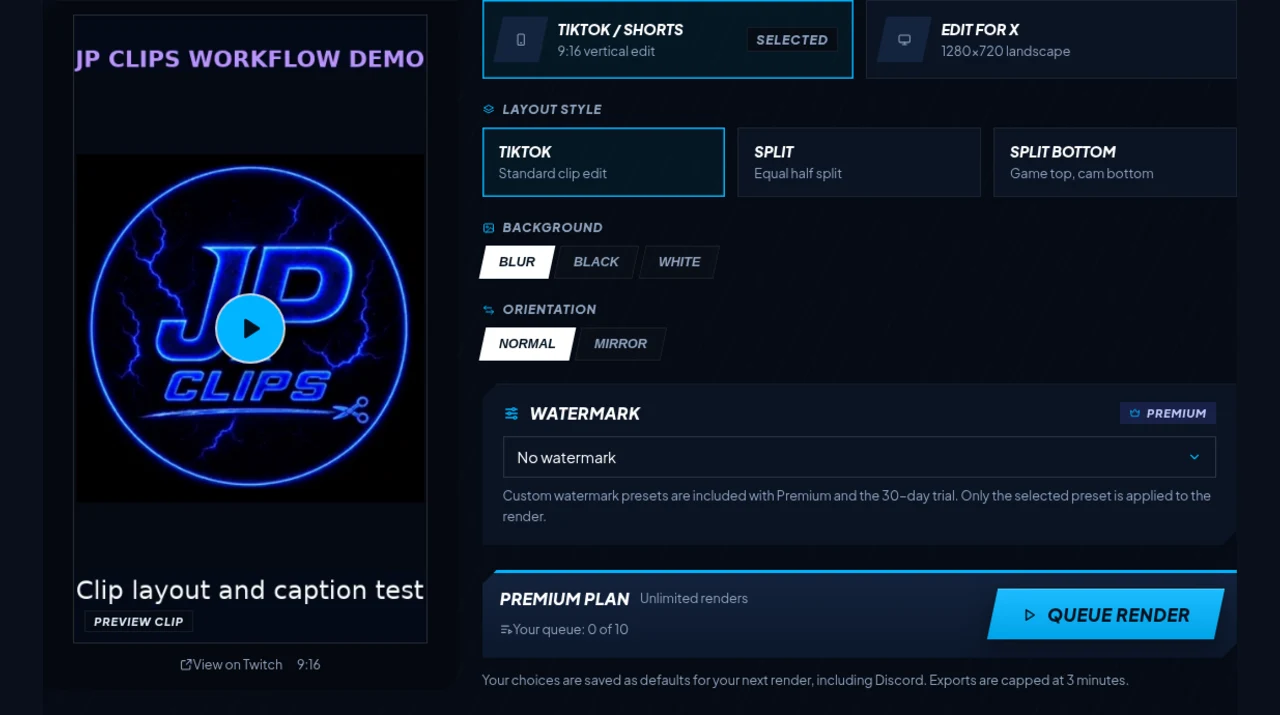
- Preview a collected clip and choose TikTok or Edit for X to open Render Studio. Review the layout, background, orientation and watermark options, then press Queue Render.
- Follow progress in the render tracker or Live Queue. When the file is ready, open My Renders and use Download to save your copy.
Use Discord
- Join the JP Clips Discord server and open a tracked streamer's channel. Channels are grouped as UK, US and partners, with collected Twitch clips posted automatically.
- Watch a clip, press Edit for TikTok and review the private render options. Press Render when you are ready to join the same queue used by the website.
- Save the attachment from the private render message or find your finished files with /myclips. You can also download your Discord renders from the website dashboard when you have website access.
Render the clip in either place
Use the website or Discord to preview the collected clip before choosing your render settings. Both routes create downloadable files for you to post.
- Website: open the clip in Render Studio on jpclips.tv, choose your settings and press Queue Render.
- Discord: press Edit for TikTok on the clip, choose your settings and press Render.
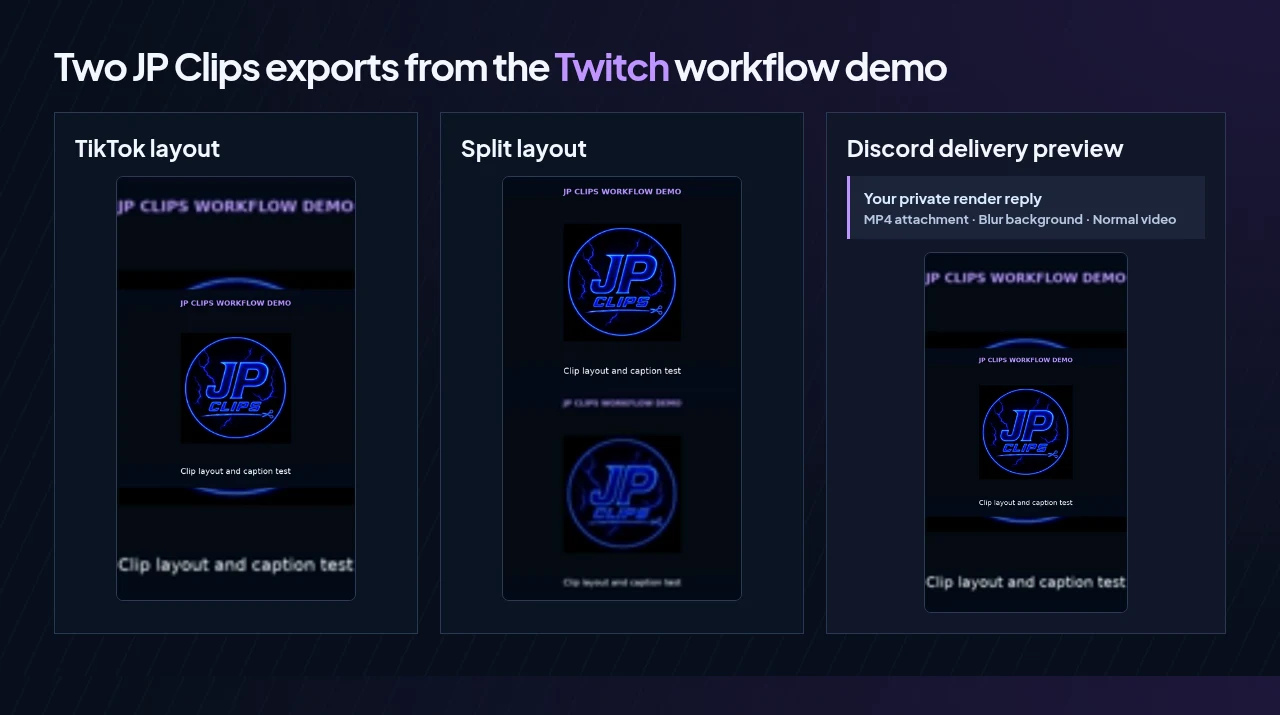
Layout: TikTok, Split, Split Bottom. Background: Blur, Black, White. Orientation: Normal, Mirror. Settings are saved across the website and Discord, and the daily render allowance is shared between both.
Choose Normal orientation to keep captions already in the clip readable.
Finished renders are given to you in the render studio or in the channel you started the render. You can view your renders from the past 2 hours at any time using /myclips on Discord or in the My Renders tab on our website app. The website dashboard and Discord downloads are available on every plan.
Compare clipping workflows
| Starting point | Workflow |
|---|---|
| A clip from a tracked Twitch streamer | Open the Clip Feed or Discord, choose a layout and render the clip. |
| A moment in a live stream or replay | Create a clip on Twitch first if the channel permits clipping. |
| A finished video ready to post | Upload it on your chosen platform and review the captions. |
Who it is for
Clippers with permission to post Twitch clips to TikTok and YouTube Shorts can download an edit here and upload it to their own account.
Streamers can use the same feed to edit their own published clips. See Kick vs Twitch for clippers if you work across both platforms, or JP Clips vs OpusClip if you’re deciding what to do with a full recording.
Which Twitch streamers can you clip?
Only Twitch streamers an admin has added are tracked, grouped as UK, US and partners. Browse tracked streamers and their collected clips on the website or in Discord. Trial and Premium members can suggest a channel with Request a streamer on the website. Eligible Discord members can use /requeststreamer. Admins review requests. Read how to find Twitch streamers to clip before choosing a channel.
Plans and pricing
Free
5 clip renders per day across streamers that use the global allowance. Every streamer is included. Full access to our website and Discord Bot. Custom watermarks are not included.
Premium
Unlimited clip renders across our tracked streamers, custom watermarks, crossposting and priority render queue. Plans are offered at Monthly, Yearly and Lifetime pricing.
Premium prices
The Premium trial lasts 30 days for eligible Free accounts and includes unlimited global renders, custom watermarks and queue priority, excluding crossposting. One trial per Discord account. No automatic charge or conversion to a paid subscription; return to Free when it ends unless you choose Premium.
Free and Trial can render on the website and in Discord, sharing the same allowance. The global daily allowance resets at 00:00 UTC. Premium and Trial members can save custom watermarks and go ahead of Free renders in the shared queue.
Every plan renders at the same high quality.
Read next
Take a Twitch clip link into the TikTok converter walkthrough, or follow the Discord bot guide to render in the server.