 Open JP Clips
Open a published Twitch clip
Copy the published Twitch clip’s share link, such as a clips.twitch.tv link. Sign in to JP Clips, paste it into Clip Feed and select the clip result. If it is already in the feed, choose TikTok on the clip card.
Frame the clip for a phone screen
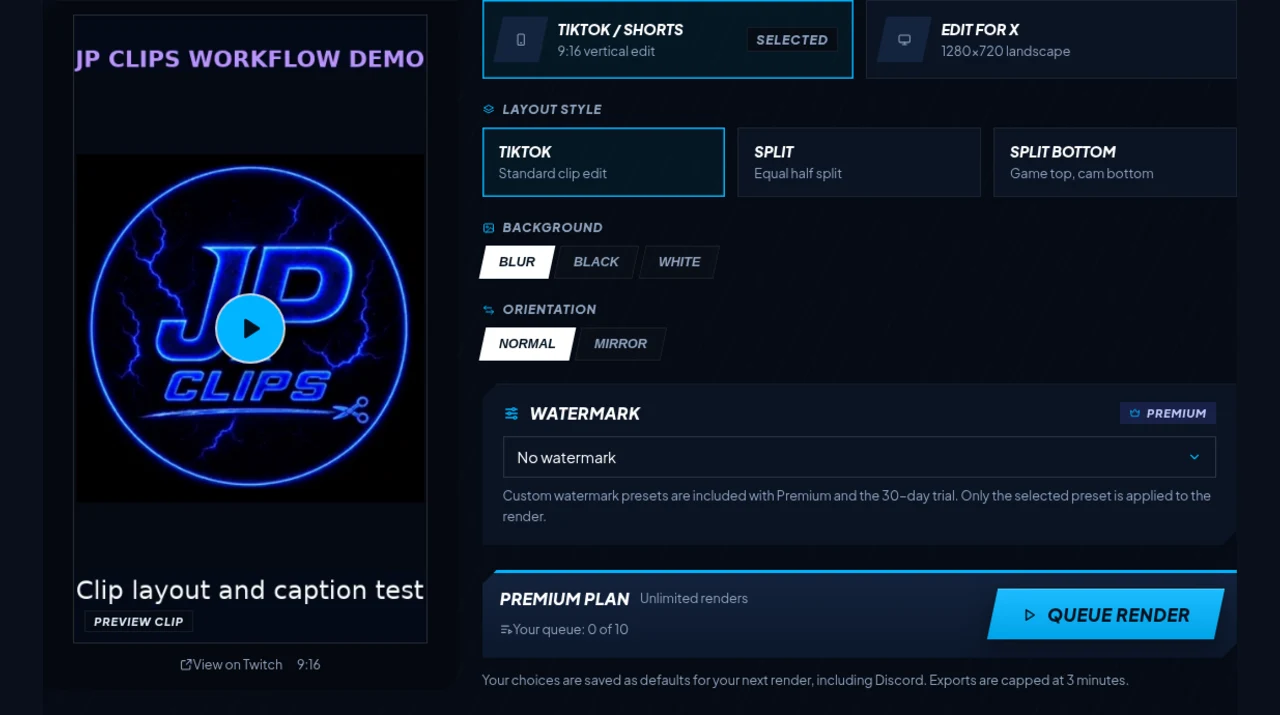
- Select TikTok / Shorts in Render Studio. Preview TikTok, Split or Split Bottom and pick the layout that keeps the action visible.
- Choose Blur, Black or White for the background. If the Twitch clip already has captions in the video, choose Normal orientation to keep them readable.
- Queue the render and download the MP4 from My Renders. A normal download is available for two hours after completion.
Post the downloaded MP4
Open TikTok and upload the saved file. Check the sound and caption placement in the preview, then add any required creator credit before posting.
Related guides
Start with creating a Twitch clip from a stream if you still need a source. Use the Twitch editing guide to compare layouts, or read about Twitch clipping in JP Clips for the Discord workflow.
Common questions
Can I use a clip from a Twitch streamer outside the feed?
Yes. Start with an accessible public Twitch clip URL and make sure you have permission to reuse the footage.
Can I use the download for Shorts?
Yes. Select TikTok / Shorts to export a 9:16 file.
Does JP Clips upload the file to TikTok?
Download the MP4 and upload it from your TikTok account.