 Open JP Clips
JP Clips automatically collects published clips from the Twitch channels it tracks. Find them in Clip Feed on the website or in the streamer’s Discord channel.
Find the tracked channel
- Look up the channel in Streamers or browse tracked Twitch channels in the JP Clips Discord.
- Open a recent clip and preview it. Pick one with a clear opening so the edit makes sense to someone who missed the stream.
- If the channel is missing, see how to request a Twitch streamer.
Render on the website or in Discord
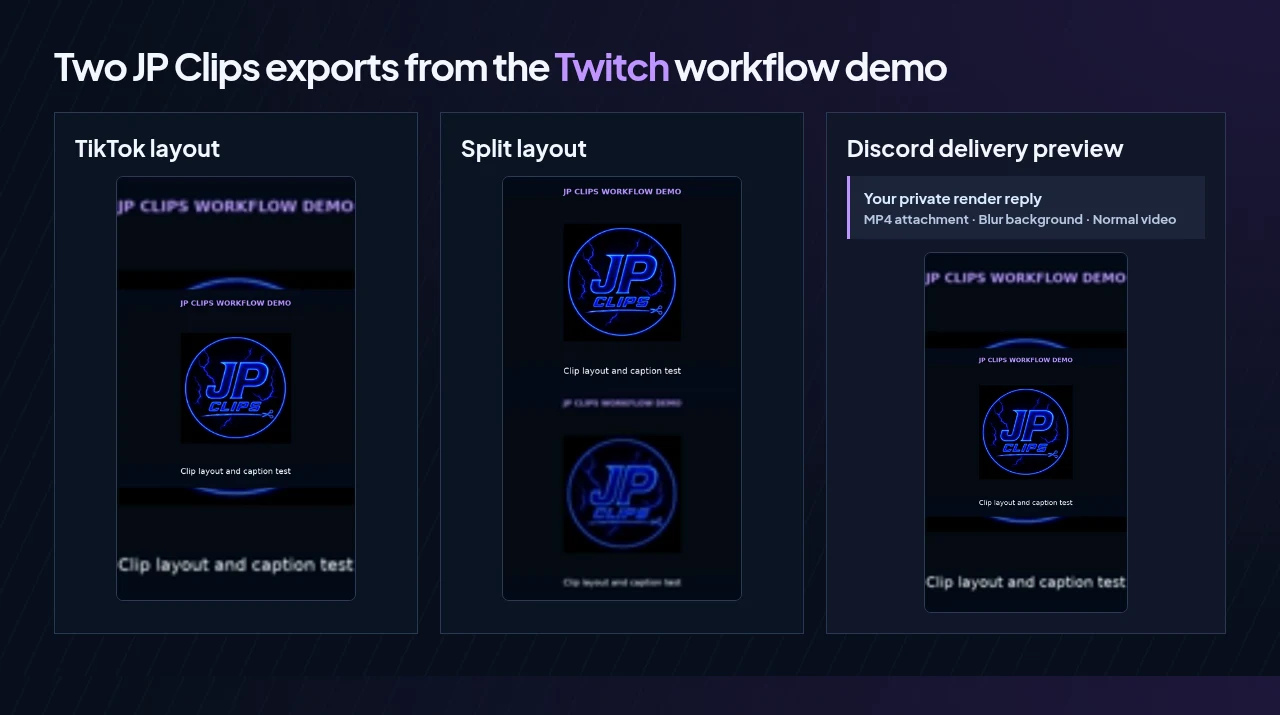
On the website, choose TikTok on a clip card, preview the layout in Render Studio and queue the render. In Discord, choose Edit for TikTok on the original post and select Render in your private editor. Both routes use the same saved render settings.
Save the finished file from My Renders or from your Discord result. Both routes share your daily allowance, and normal downloads expire two hours after completion.
What to check if a clip is missing
Open the source link on Twitch and confirm the clip plays there. Twitch clips must be published before JP Clips can pick them up. Collection may take a little time after publishing.
Check the streamer’s platform and whether the channel is tracked. If the clip already plays on Twitch, try its public share link in Clip Feed. For a channel you want collected automatically, see how to request Twitch tracking.
Related guides
Check availability and compare the website and Discord routes for Twitch clipping in JP Clips. To make a clip first, see how to publish a Twitch clip from a stream.