1. Join and find a streamer’s clip channel
Join discord.gg/jpclips and browse the streamer channels under Partnered Streamers, UK or US. The channels are read-only for members. Scroll to a clip and use the buttons on its post. Try a creator you know first so you can tell at a glance which moment will make sense outside the stream.
JP Clips automatically collects clips people publish on the Kick and Twitch channels it tracks. If all you can see is a go-live message, the streamer is live and a source clip may not be available yet. Publish a clip on the source platform and use /clip with its URL, or wait for a clip to appear in the channel. A post can contain an attachment or offer a link to watch the source, depending on how the streamer’s channel is configured.
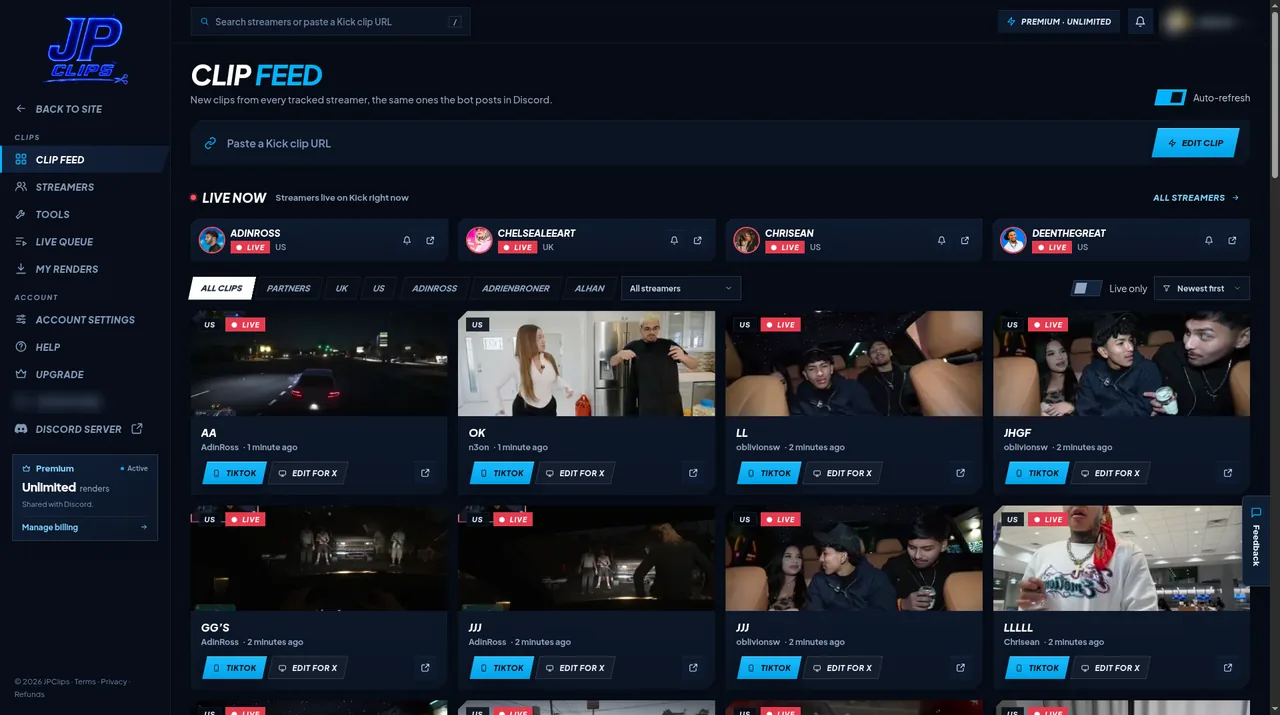
If you are looking for a specific clip across several channels, open Streamers or filter by creator in the website Clip Feed. Both are good ways to confirm that you are looking at the right streamer.
2. Render privately from a Discord clip post
- Watch the clip, then press Edit for TikTok beneath its post for a 9:16 edit. Choose Edit for X for a 1280×720 landscape file.
- In the private editor, choose your layout, background and orientation for a vertical clip. TikTok is the standard layout, Split gives both views equal space, and Split Bottom puts the game above the camera. For a Kick clip, choose whether to keep its banner. Select a saved watermark preset if your plan includes it.
- Press Render and watch the private progress message. When the video is ready, the bot updates that message with the result. Use /myclips if the original message is no longer available.
Save the file to your device. A normal download stays available for 2 hours after the job finishes and a recovered render stays available for 6 hours. The source post stays in the streamer’s channel while your personal edit is delivered privately. Take a moment to check the framing and sound on your phone before you upload it.
3. Choose Discord or the website for the next clip
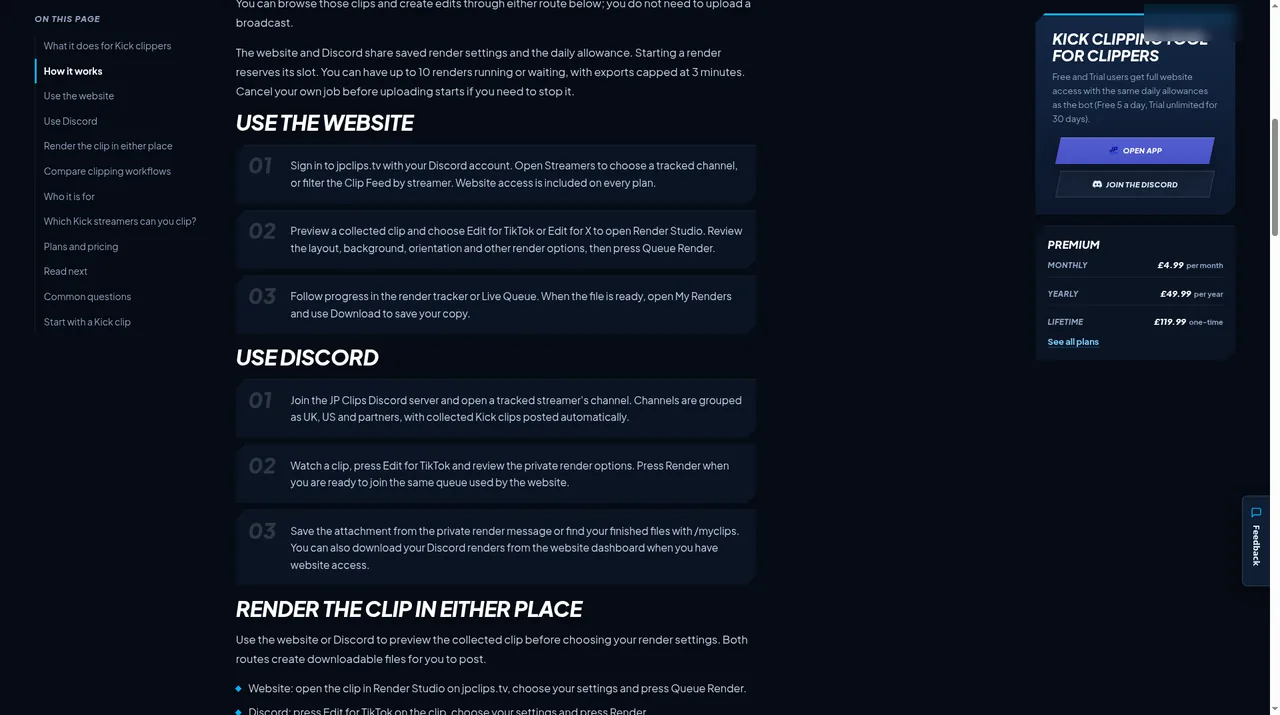
When you already have a clip post open in Discord, use the editor on that post. When you want to compare more clips or check the visual preview before committing to a layout, sign into the website with the same Discord account and choose Open App. Find the card in Clip Feed, then use TikTok or Edit for X to open Render Studio.
Both routes use the same saved defaults. For example, if you use Split Bottom for your last vertical edit, check those choices in the editor the next time you switch surfaces. For a clip link, follow the Kick converter guide or the Twitch converter guide.
Track allowance and progress across both routes
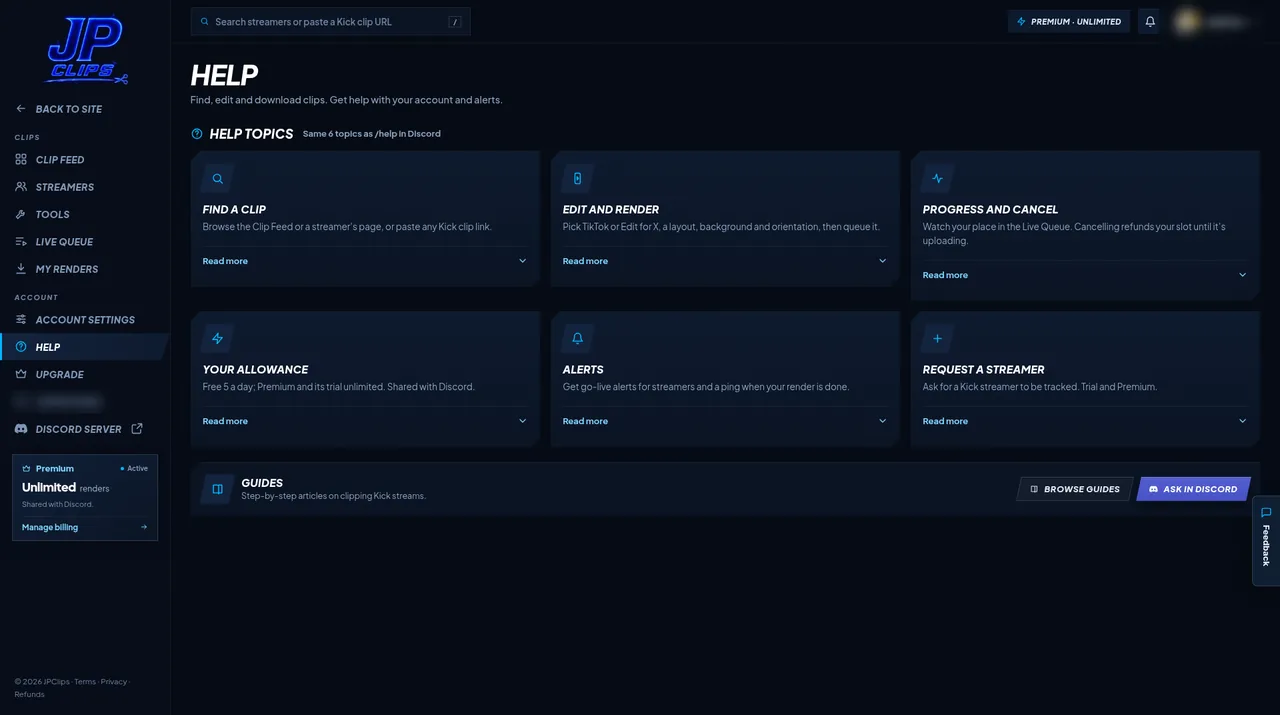
The Free global allowance is 5 renders per day, resetting at 00:00 UTC. A render in Discord and a render on the website use that same allowance. Premium has unlimited global renders and priority in the waiting queue. Some partnered streamers have separate per-plan limits, which means a render for that streamer may use a different allowance. Check the displayed figures before rendering.
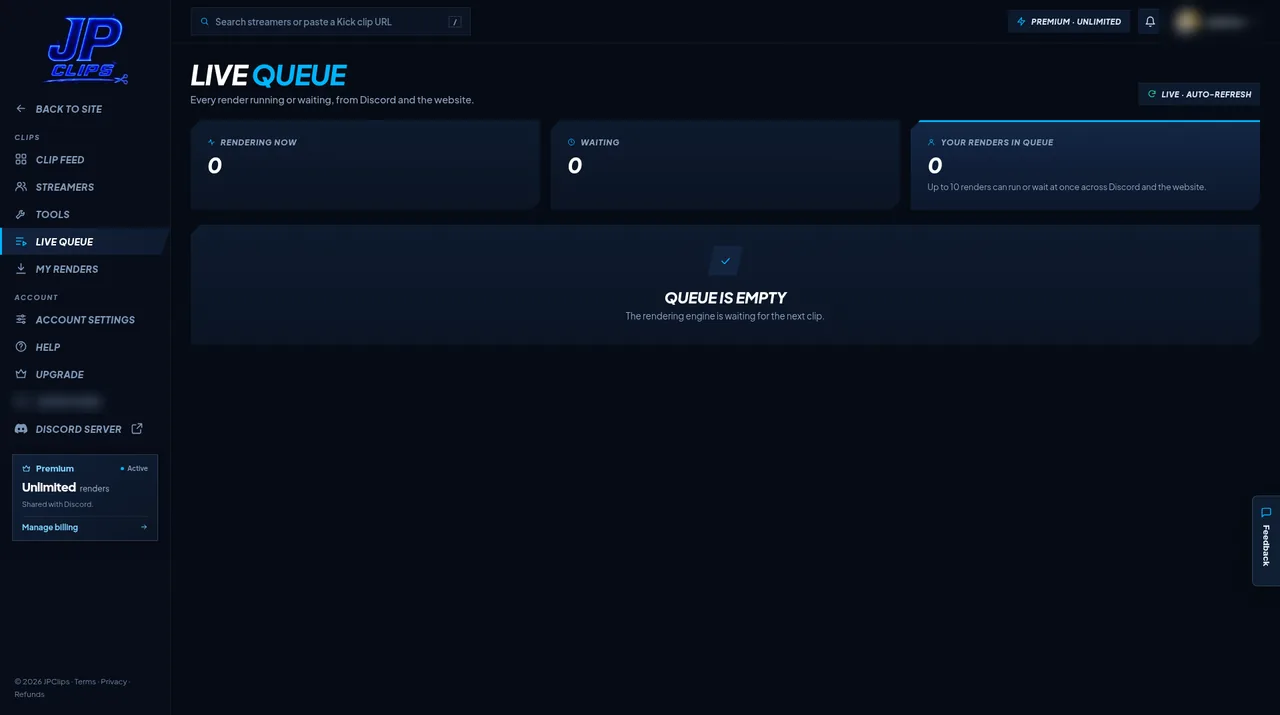
Up to 10 jobs from the same member can run or wait across both routes, even on Premium. Open Live Queue on the website to see what is running or waiting. You can cancel your own job before uploading starts and recover its daily allowance slot. Each export is capped at 3 minutes.
Discord commands and live alerts
- /clip opens the editor for a public Kick or Twitch clip URL. Paste the clip link in the url option, then choose your render settings.
- /help opens a private walkthrough of clips, renders, allowances and notifications.
- /myclips opens your private renders panel. Use it to check jobs and download ready files before they expire.
- /requeststreamer asks the admins to review a Kick or Twitch channel. Use the channel login and choose the matching platform. Eligible server members can submit a request in Discord. The website also offers a streamer request action to eligible Trial and Premium members.
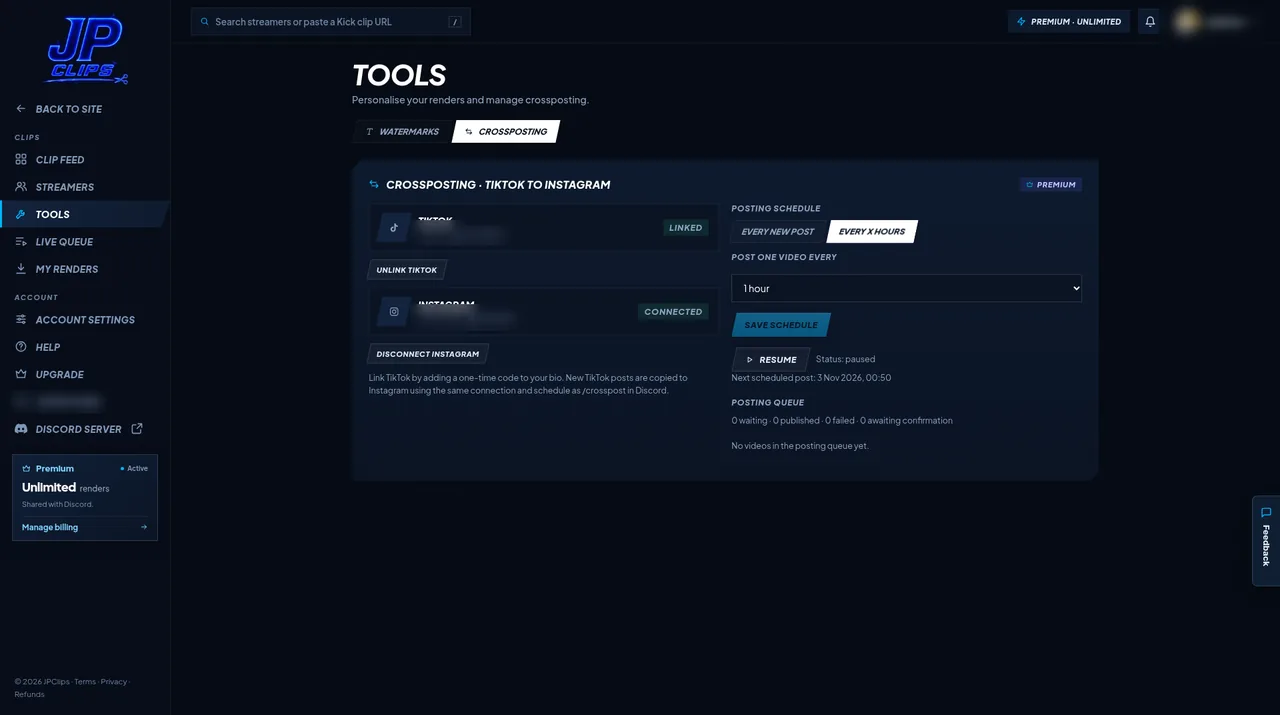
- /crosspost opens Premium’s private TikTok-to-Instagram tools. Connect an Instagram Business or Creator account. This feature is separate from making and downloading a clip.
To get a DM when a streamer goes live, choose Get Notifications in their channel or Notify Me on a live announcement. Use Stop Notifications from the DM or channel prompt to switch it off. If you signed up and alerts are missing, check whether Discord allows direct messages from the server.
Related guides
See how to auto clip Kick streams for the full collection and render workflow or how to find Kick streamers to clip if you are building your shortlist.