 Open JP Clips
Find tracked Twitch streamers in the JP Clips directory or Discord channels. Start with creators whose clips you have permission to edit and share.
Check the directory and preview recent clips
Search for the creator in Streamers and check the platform badge and handle. Open Recent Clips or the matching Discord channel and preview moments with a clear opening and payoff.
Before you share an edit, check the creator’s reuse rules and confirm whether their footage, music and any campaign terms allow your intended post.
Request a Twitch channel for tracking
If the channel is missing, eligible members can submit the Twitch channel or login through the streamer request flow. Check the platform and channel name before sending the request. The JP Clips team reviews requests before adding channels.
While you wait, you can start from an accessible published Twitch clip link.
Render a clip you have picked
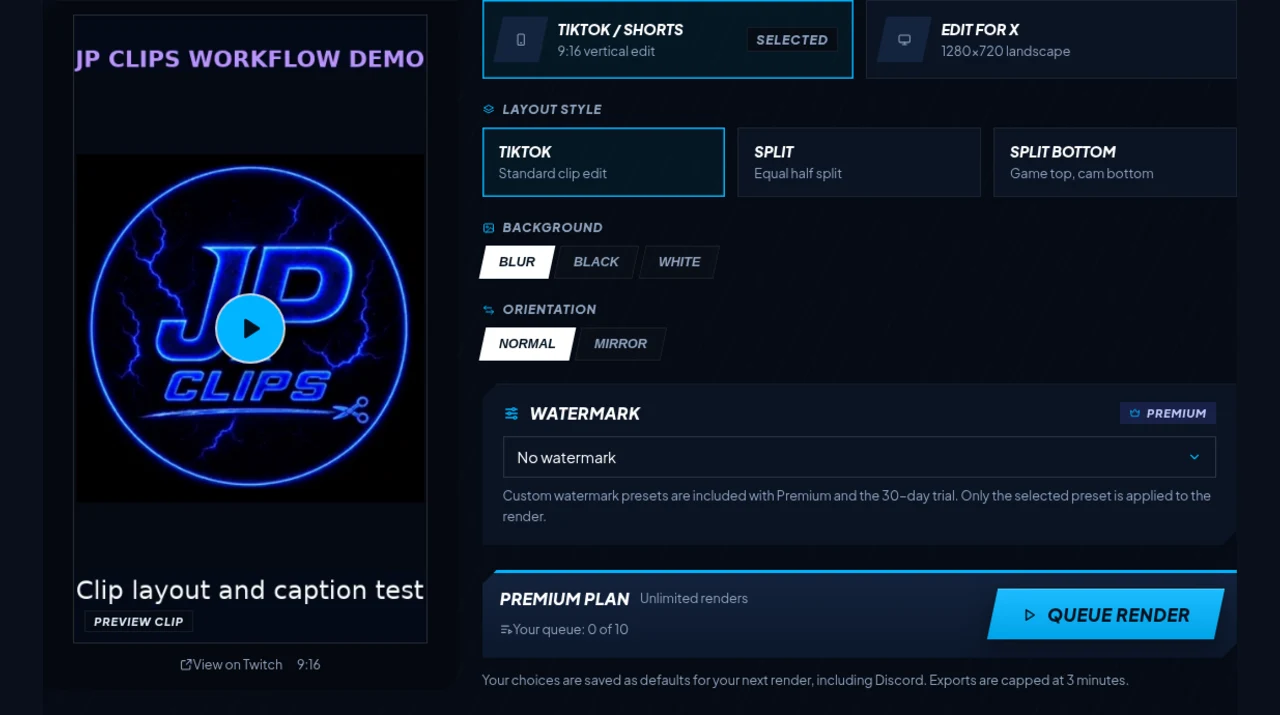
Open the clip in Clip Feed or Discord, choose a format and download the finished edit.
Related guides
Check Twitch clipping in JP Clips for access and the editing workflow. The guide to automatic Twitch clip collection covers what to do if a published clip has not appeared yet.