A Kick clipping programme is a paid campaign where clippers post short edits of Kick streamers’ content that meet a brief and qualify for payment under its rules, such as Clipping.net’s invite-only Kick Clipping campaign. JP Clips, a Kick clipping tool, helps you prepare that edit: pick a clip in Clip Feed or paste a published Kick clip URL, choose the layout and channel credit in Render Studio, then download and review the file before you post.
How Kick clipping campaigns work
A campaign sets out whose content you can use, where you can post it and how your posts qualify for review or payment. The brief may be for one creator, a group of channels or a specific event. Read the source, account and platform rules before you plan a batch.
On Clipping.net a campaign groups individual bounties, each with its own brief, budget and dates. Choose an open bounty whose footage and audience fit your account. Check any required caption tag, sound, post window or account approval first. Keep the source URL and the published post link so you can supply them with your submission. Clipping.net campaign documentation and submission instructions checked 21 November 2026.
Apply to the Clipping.net Kick campaign
The Clipping.net Kick Clipping campaign is invite-only. Its public page offers Apply for access and says the brief, files and bounties become available once you are approved. Clipping.net’s documentation directs private-campaign applicants to apply in its own Discord. Sources checked 21 November 2026.
- Open the campaign page, choose Apply for access and join the Clipping.net Discord through its official link.
- Open an application ticket in the Clipping.net Discord and provide the information the campaign team asks for. Follow the current instructions in that server if the intake changes.
- Wait for approval, then read the live bounty requirements in Clipping.net before posting or submitting an edit.
If you use JP Clips and want help preparing an application or understanding clip standards, ask in the JP Clips Discord or email contact@jpclips.tv. Bring the brief and a sample clip so the team can help with format, framing and attribution. The campaign organiser decides admission and reviews submissions.
Prepare the campaign clip in Render Studio
Start with a permitted clip that makes sense on its own. Browse the creator’s collected clips in Clip Feed or use Paste a Kick clip URL and Edit Clip for a source you already have. The website and Discord walkthrough shows where to find collected clips. Use the source listed in the brief if the organiser supplies footage or specifies a channel.
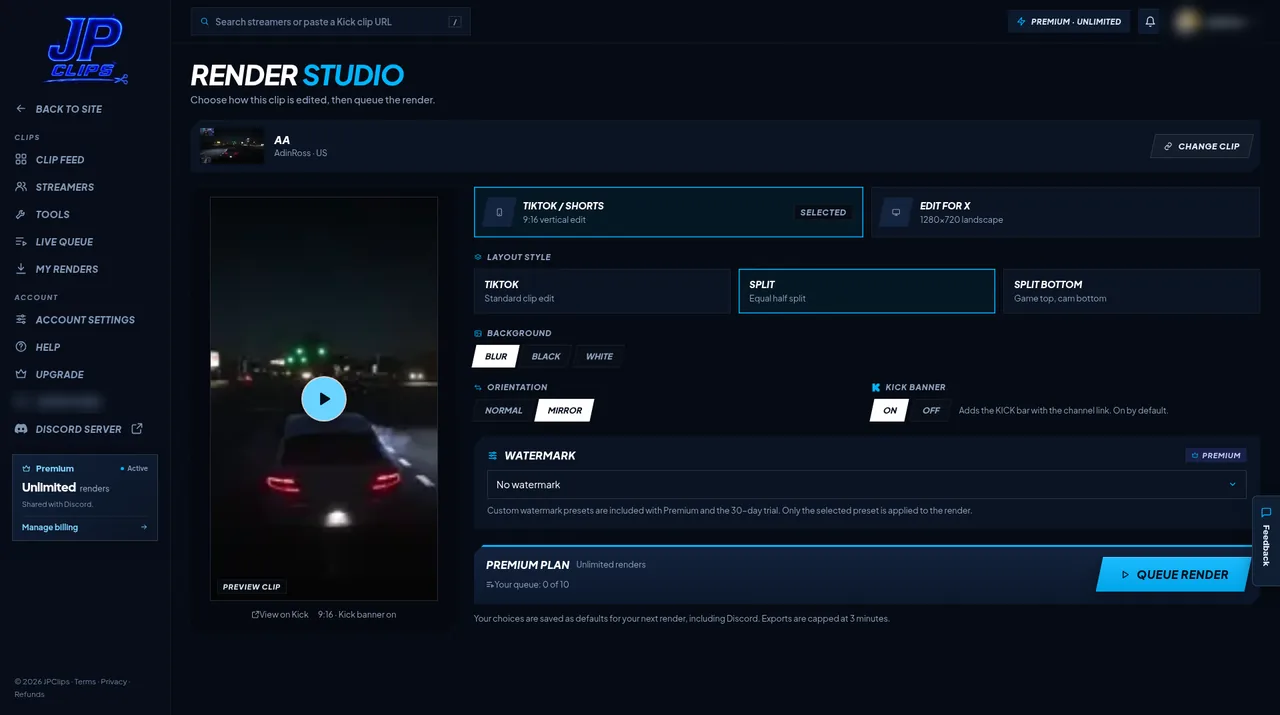
For a vertical brief, choose TikTok / Shorts. Start with the standard TikTok layout for a single clear subject, or preview Split or Split Bottom where both the reaction and gameplay tell the story. The Kick banner is on by default and includes the channel link. Keep it where it meets the brief and add any separate credit the campaign asks for. Leave a saved watermark off unless you want it and the brief permits it.
Check the bounty’s length requirement. JP Clips exports up to 3 minutes, but the brief may call for a shorter file. Choose a source whose timing already works or trim your download before posting. Press Queue Render and save the finished MP4 from My Renders. Watch it at phone size and add any required captions, tags or sound before posting.
Related guides
For the wider workflow around getting paid and keeping track of posts, read how to make money clipping streams. Use the TikTok editing guide for help with permissions, captions and the final play-through.