 Open JP Clips
Learn what each Render Studio control does when you edit a published Twitch clip. Compare vertical and landscape exports, split-screen framing and orientation.
Open a clip in Render Studio
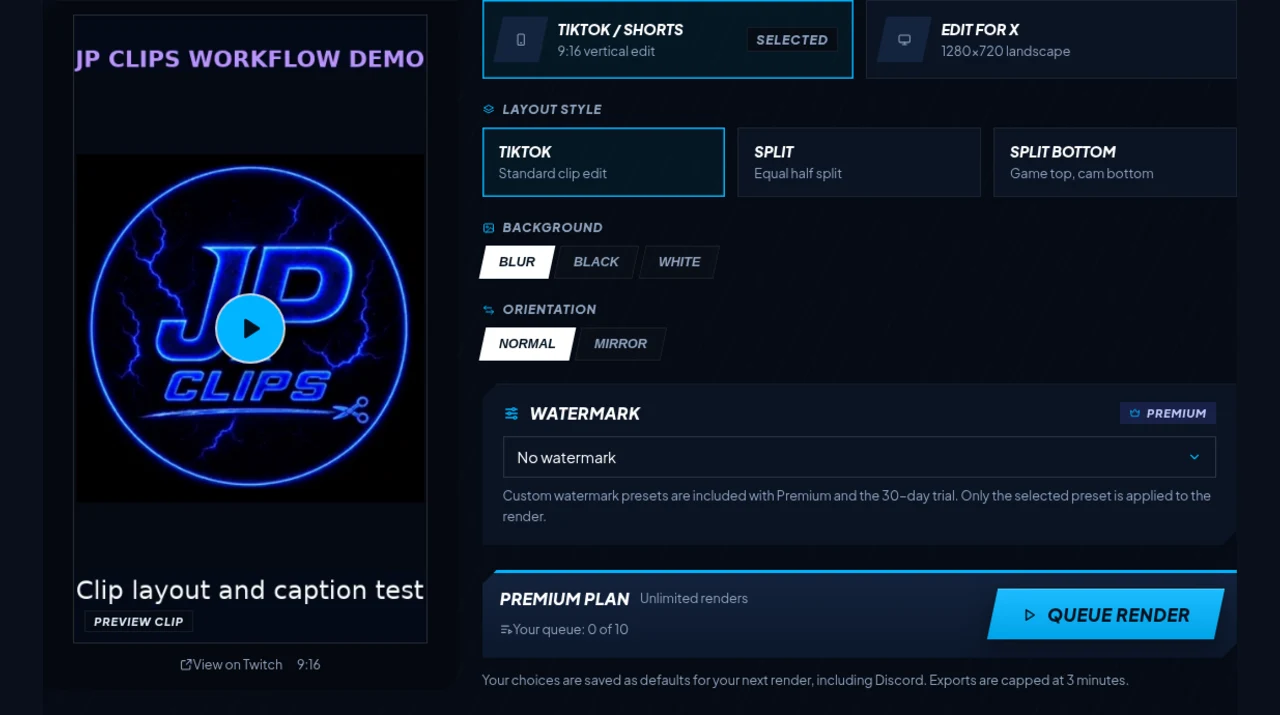
Choose TikTok or Edit for X on a Clip Feed card. You can also paste a public Twitch clip URL into the Clip Feed search to open its editor. See Twitch clipping in JP Clips for the Discord workflow.
Choose the right layout for the footage
- Choose TikTok / Shorts for a 9:16 export or Edit for X for landscape. Preview the whole clip and check whether the action stays in frame.
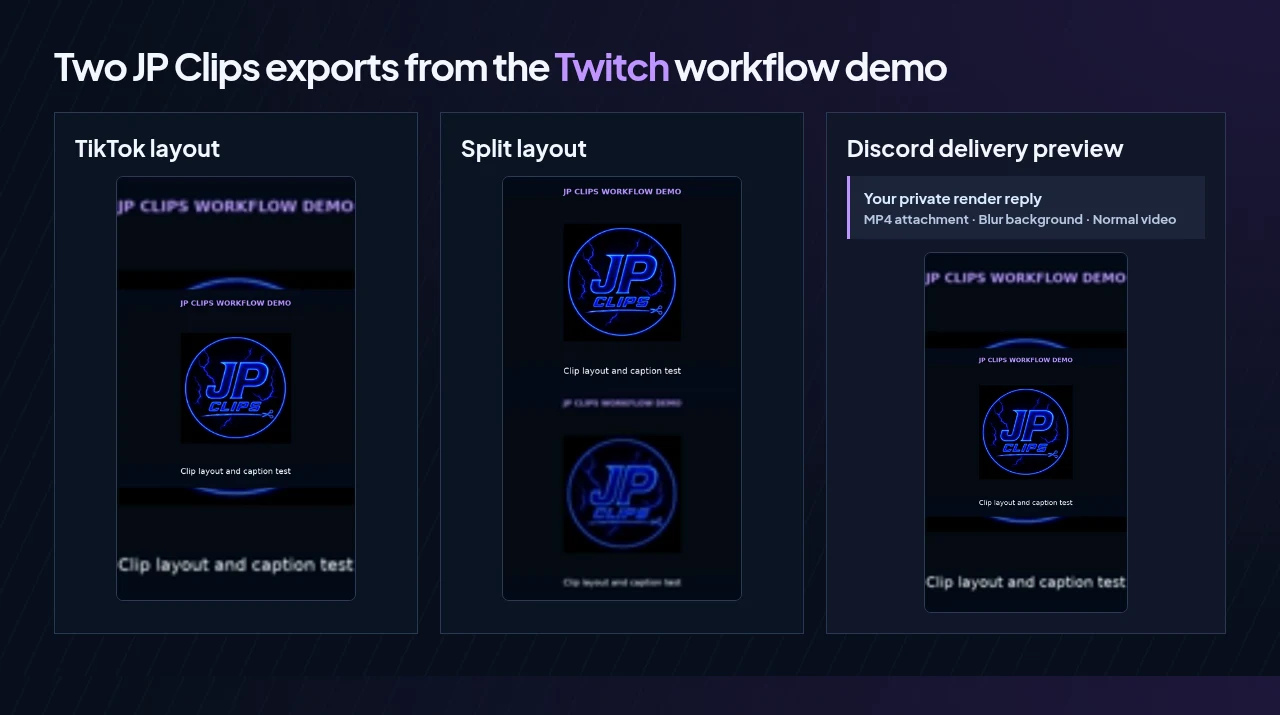
- Use the TikTok layout for a single view. Try Split or Split Bottom when the reaction and the main action need separate space. Compare both previews to see which part of the frame remains readable.
- Leave Orientation on Normal when the source already has on-screen text. Choose a background and queue the clip. Download the finished MP4 from My Renders.
Related guides
How to auto clip Twitch streams · Convert a Twitch clip to TikTok · Find Twitch streamers to clip
Common questions
Which layout should I use for gameplay with a facecam?
Try Split and Split Bottom and preview where each puts the main picture. Check that no key action or captions are cropped out.
Why do captions look backwards in Mirror?
Captions baked into the Twitch video flip with the image. Choose Normal to keep them readable.
Where do I get the finished edit?
Download the MP4 from My Renders. Standard download links are available for two hours after completion.